
Cloud Storage Drive Backup app
MINDBYTE STUDIOSTools
3.9146.00 Reviews
- Version
- 1.67
- Installs
- 500.00K
- Age Rating
- Everyone
Screenshots
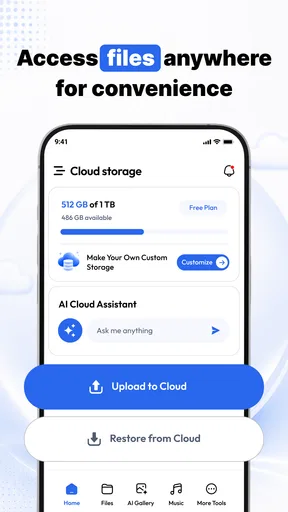
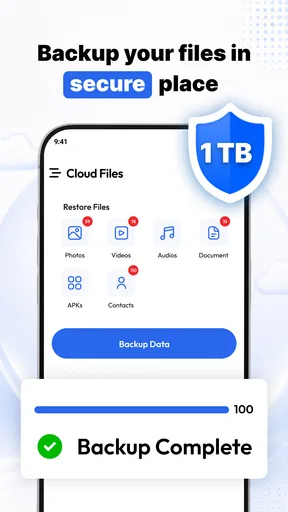
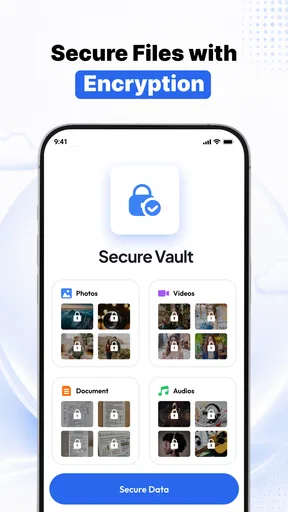
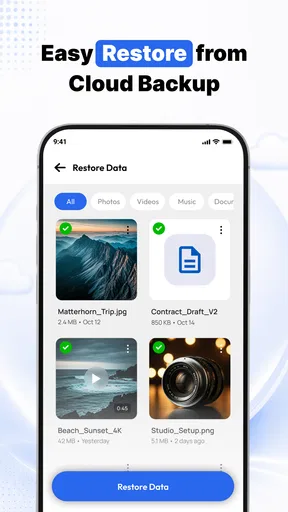
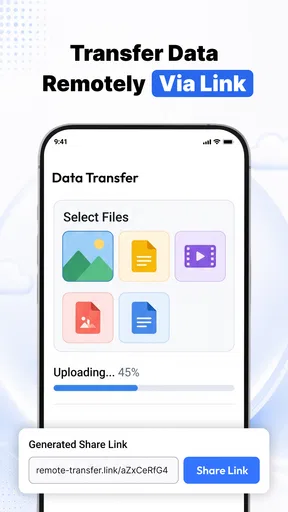
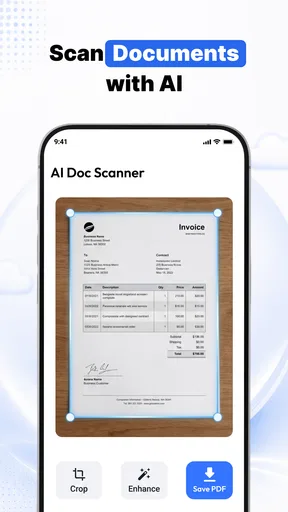
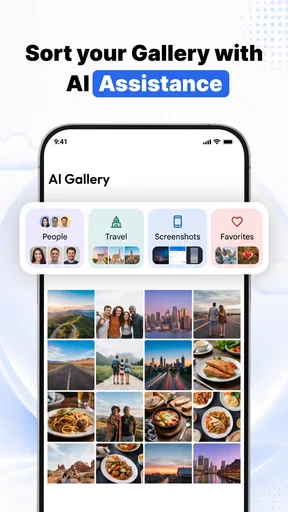
Our Review of Cloud Storage Drive Backup app
 Analysis by Appyee
I approached Cloud Storage Drive Backup as a practical tool rather than another app I would open for entertainment. Its purpose is straightforward: keep copies of photos, videos, and contacts in cloud storage, then give me a way to restore them when I need them. That makes it most relevant during phone upgrades, accidental deletions, device failures, or simple attempts to reduce the risk of losing personal memories.
After spending time with it, my impression is that this is an uncomplicated backup-focused app from MINDBYTE STUDIOS. It is free to install, aimed at Everyone, and sits in the Tools category. The current release is version 1.67, while the app has reached over 500 thousand installs and holds a 3.9 average from around 1.9 thousand ratings. Those figures suggest a useful level of interest, although they also tell me to keep expectations realistic: this is a focused utility, not necessarily a complete replacement for every cloud service I might already use.
How the current version fits into everyday backup
The clearest way to understand this app is to think of it as a safety net for selected personal data. Photos and videos are usually the items people regret losing most, while contacts can be surprisingly difficult to reconstruct after a damaged or misplaced phone. Bringing those three areas together gives the app a practical role, especially for someone who wants one place to begin a backup routine.
I would use it before changing phones, before resetting a device, or before taking a long trip where losing a phone would be particularly disruptive. A backup is only useful if it has been completed and can be found later, so the important habit is not merely installing the app. I would first choose what matters most, allow the process to finish, and then check the available restore path before treating the phone as protected.
The secure-drive angle is also useful for people who want their backed-up material separated from the phone itself. That separation changes the recovery process: if the handset disappears, the files are not tied only to its local storage. However, I would still treat cloud backup as one layer of protection rather than a reason to delete every local or secondary copy immediately.
One everyday example is a family member moving from an older Android phone to a newer one. Instead of relying entirely on a cable transfer, I would back up the camera folder and contacts first, then use the new device to restore what is needed. This is especially helpful when the old phone is unreliable or when the transfer has to happen in stages. The sensible approach is to compare the restored photo count and contact list with the original before wiping anything.
Because the minimum operating system is Android 9, the app is accessible to many Android users without requiring a recent handset. That is a meaningful advantage for people keeping an older phone as a backup device. At the same time, anyone using a very old phone should plan the first upload carefully, since a large media library can be inconvenient to process while relying on limited battery, storage, or connectivity.
A better first-session routine
My advice is to avoid treating the first launch as a one-tap emergency solution. Start with contacts, because that is usually a small and highly valuable set of information. Then move to photos and videos in manageable groups if the library is large. This makes it easier to notice an interrupted upload and avoids discovering at the worst possible moment that an important folder was overlooked.
I would also create a simple personal checklist: identify the albums that must survive, confirm that recent pictures are included, and keep the original device untouched until restoration has been tested. That workflow is more reliable than assuming that a backup label automatically means every item on the phone has been copied exactly as expected.
Another useful habit is to use the app before a predictable risk rather than after it. A planned phone replacement gives me time to upload, inspect, and restore. A broken phone gives me none of that time. The app makes more sense when it becomes part of a routine instead of something I remember only after losing access to the device.
What the current release tells me
Version 1.67 is the release I would evaluate today, and the app was released on December 18, 2025. Those details matter because backup tools depend heavily on current device behavior and stable handling of personal files. A current version is encouraging, but I would still verify the result of a real backup rather than judging reliability from the version number alone.
The release history gives existing users a useful reason to revisit the app after updating: repeat a small backup and restoration test, inspect whether the same categories remain available, and make sure the workflow still feels clear on the device being used. I would not assume that an update changes the entire experience, but I would use it as a prompt to check the part that matters most—whether my data can actually be recovered.
For someone installing it for the first time, the current release is a sensible starting point because it represents the app as it is now rather than an older build. For an existing user, the practical question is not simply whether the interface looks different. It is whether the app still handles the personal items that person depends on, especially contacts and the newest media.
I also like the fact that the product has a clear identity. It is not trying to present itself as a photo editor, social network, or file-management suite. That focus can make a tool easier to understand. I can open it with one job in mind: preparing a recoverable copy of important personal content.
Where it helps existing users most
People who already have a backup habit may find this app useful as a second route for key items. For example, I might use an established photo service for daily synchronization while using this app to create an additional copy of selected albums and contacts. That arrangement adds a little management work, but it reduces dependence on one application or one account workflow.
There is a trade-off, though. Two backup systems can create uncertainty if I do not label or organize them consistently. I would decide which service is the primary copy and which is the fallback. Otherwise, I could end up with older versions in one place, incomplete albums in another, and no clear idea of which one is safe to restore.
For a user who has never backed up a phone, the app’s narrow scope can be an advantage. Photos, videos, and contacts are easier to understand than a complicated device-image system. The limitation is that a focused backup is not the same as a full migration. Applications, settings, messages, and other device content should not automatically be assumed to come back simply because media and contacts have been stored.
That distinction is one of the most important points in using it responsibly. Before a factory reset, I would write down the items that need separate handling and check them individually. The app is strongest when I use it for the categories it is designed around, not when I expect it to reproduce the entire phone without any additional preparation.
Security, access, and the restore decision
The secure-drive positioning will appeal to users who want their backup away from local storage, but I would still think carefully about access. A cloud copy is valuable only while I can reach the account and complete the recovery process. I would keep my sign-in details available through a safe method and avoid waiting until an emergency to discover that I cannot remember how restoration works.
My preferred test would be small and controlled: back up a few non-critical photos and a limited contact selection, then see whether those items can be located and restored to the intended device. This is a better test than uploading everything at once because it isolates the workflow. If something feels confusing, I can correct it before trusting the app with my entire library.
I would also avoid using a public or unstable connection for a large first backup when privacy and reliability matter. A home connection is usually more comfortable for a long upload, and keeping the phone charged prevents an avoidable interruption. These are ordinary precautions, but they make a noticeable difference with any cloud-storage tool.
The app is free to download, which lowers the barrier to trying that small test. In-app purchases range from $9.99 to $179.99 per item, so I would review the purchase screen carefully before committing to anything beyond the free experience. The wide range means a user should not assume that every storage need will remain free or that the most expensive option is necessary.
My approach would be to establish the exact amount of content I need to protect before considering a purchase. If I only need contacts and a modest collection of important pictures, paying for a larger tier may be unnecessary. If I have years of high-resolution videos, I would compare the likely cost and convenience with other cloud-storage services before choosing a long-term plan.
Where the usual alternatives may be better
The familiar alternative is to use the backup tools already integrated into the phone or a dedicated photo-storage service. Those options may be more convenient for people who want continuous background synchronization, broader device migration, or tight integration with an existing account. If my priority is a complete phone restore with minimal manual checking, I would look at those alternatives first.
This app makes more sense when I want a focused, separate destination for photos, videos, and contacts. It can also suit someone who prefers a straightforward utility instead of a large ecosystem filled with editing, sharing, document, and collaboration features. The smaller scope is both its appeal and its boundary.
I would skip it as my only solution if I need advanced file organization, automatic multi-device workflows, extensive sharing controls, or a complete image of the phone. I would also hesitate if I dislike managing cloud capacity or checking whether a backup finished. The app can reduce risk, but it cannot remove the need for sensible backup habits.
For a household with several phones, the decision becomes more complicated. A single focused app may be convenient, but each person still needs a clear recovery path. I would test the workflow on the least technical user’s device first. If that person can identify the backup and restore a sample item without help, the app is more likely to work well in the household.
Small details that change the practical experience
One non-obvious strength is that contacts deserve separate attention from media. People often remember to protect photographs and forget that their address book may contain years of changes. I would make contacts the first category to verify after installation, then repeat that check whenever I prepare for a phone replacement.
A second useful insight is to treat video as the stress test. A handful of photos can make a backup appear successful even when the process has not been tested with larger files. I would include several videos in my trial, especially recent ones, and confirm that they are available after the upload. This reveals practical friction earlier than a photo-only test.
A third trade-off concerns convenience versus independence. Using a separate backup destination can protect me from relying on one built-in service, but it also creates another place to maintain. I gain an additional recovery path only if I remember the account, understand the restore sequence, and occasionally confirm that the backup still represents my current library.
A fourth tip is to perform a verification after important events. If I return from a trip, record a family occasion, or add a large group of contacts, I would not assume that an older backup covers those new items. I would run a fresh check and keep the phone intact until the latest material is safely represented.
These habits are not flashy features, but they are where a backup application proves its value. The store summary may explain the general purpose, yet the real benefit comes from using the tool with a repeatable process. In my experience, careful verification matters more than a polished first impression.
Who should use it and who should pass
I can recommend it to Android users who want a dedicated place for important photos, videos, and contacts, especially before switching devices. It is also a reasonable starting point for someone who has never created a cloud backup and wants a focused tool rather than a broad service with many unrelated functions.
It is less suitable for people who expect a complete copy of every phone setting and application. It is also not my first choice for users who want an invisible, always-on system that handles everything automatically in the background. Those users may be happier with a platform-integrated backup solution, even if that means accepting tighter dependence on one ecosystem.
The Everyone content rating makes the app approachable for general household use, but the person managing the backup should still explain what is being stored and how restoration will happen. That is particularly important when a shared device contains photos or contacts belonging to more than one person.
What I would watch as the app develops
As the product evolves beyond version 1.67, I would pay attention to improvements that make verification and recovery clearer rather than simply adding more destinations. A visible way to understand what has completed, what is pending, and what can be restored would have more value to me than a crowded feature list.
I would also watch how well the app handles the transition between an old phone and a new one. Backup is only half the job; the restoration experience determines whether the tool feels dependable under pressure. Clear category selection, predictable recovery, and easy checking of recent items would strengthen its position against broader alternatives.
Pricing is another area I would monitor. Since in-app purchases can reach $179.99 per item, I would want every user to understand the long-term cost before building a large personal archive around the service. The free entry point is helpful, but storage decisions should be based on the amount of content and the length of time it needs protection.
My final view is positive but measured. Cloud Storage Drive Backup is most useful when I treat it as a focused recovery tool, not a magic copy of the entire phone. Its combination of media and contact backup gives it a clear everyday purpose, and the current release makes it worth testing for anyone on a compatible Android device. I would begin with a small backup, verify restoration, and compare the purchase requirements with my actual storage needs. Used that way, it can be a practical extra layer of protection; used without checking what was copied, it may create more confidence than certainty.
Verdict
Strengths of Cloud Storage Drive Backup app
- Automatic backup helps protect photos, videos, and important files.
- Files can be accessed across multiple devices with an internet connection.
- Sharing links makes sending large files more convenient.
- Search and folder tools simplify file organization.
- Cloud storage reduces the need to use phone storage space.
Limitations of Cloud Storage Drive Backup app
- Free storage capacity may be limited without a paid subscription.
- Uploading large files can consume significant mobile data.
- Backup speed depends heavily on your internet connection.
- Some advanced features may require a premium plan.
- Restoring many files can take considerable time and storage space.
Other Releases by MINDBYTE STUDIOS
View All
GPS Maps Voice Navigation
Travel & Local4.1
Similar Picks in This Category
View All
Google LLC4.0

Gboard - the Google Keyboard
Google LLC4.5

Google Play services
Google LLC4.3

Google Play Store
Google LLC4.9

Files by Google
Google LLC4.5

SHAREit: Transfer, Share Files
Smart Media4U Technology Pte.Ltd.4.3
Frequently Asked Questions
What is Cloud Storage Drive Backup used for?
Cloud Storage Drive Backup is designed to help you save important files, photos, videos, documents, and other data online instead of keeping everything only on your phone. After uploading your content, you can access it from supported devices, organize files into folders, and restore them if your device is lost, damaged, or replaced. It can be especially useful for creating an additional backup before deleting local files or changing phones.
Is Cloud Storage Drive Backup safe for storing personal files?
The app may provide useful protection through account access and data-transfer security, but users should still review its privacy policy and security information before uploading sensitive content. Avoid sharing login details, enable two-factor authentication if available, and use a strong, unique password. Cloud storage is not a substitute for every type of backup, so keeping an additional copy of irreplaceable files is recommended.
Does Cloud Storage Drive Backup offer free storage?
The available storage generally depends on the plan associated with your account. Some versions or services may include a limited free allowance, while larger capacities, automatic backup options, or advanced sharing features can require a paid subscription. Before downloading or uploading a large amount of data, check the current pricing, storage limits, renewal terms, and whether unused space or features expire.
Can I automatically back up photos and files from my phone?
Automatic backup availability can depend on the app version, device permissions, operating system, and subscription plan. After installation, you may need to allow access to photos, files, contacts, or background activity and then choose which folders should be synchronized. It is worth checking the settings carefully, because automatic uploads can use mobile data, battery power, and available cloud storage more quickly than expected.
What happens if I lose internet access or delete a file?
Cloud Storage Drive Backup normally requires an internet connection to upload new content and synchronize changes, although some files may be available offline if the app supports offline access. Deleted files may be moved to a trash or recovery area for a limited period, but permanent deletion can be irreversible. Users should confirm the retention policy and avoid treating synchronization as a guaranteed permanent archive.
